![How to Fix IPTV Buffering: Firestick & Smart TV [2026 Guide]](/_next/image?url=%2Fimages%2Fblog%2Fiptv-buffering-fix-2026.png&w=3840&q=75)
How to Fix IPTV Buffering: Firestick & Smart TV [2026 Guide]
Tired of your IPTV freezing? Learn 5 proven fixes to stop Firestick and Smart TV buffering, bypass ISP throttling, and enjoy zero-buffer streaming.
The Frustration of IPTV Buffering in 2026
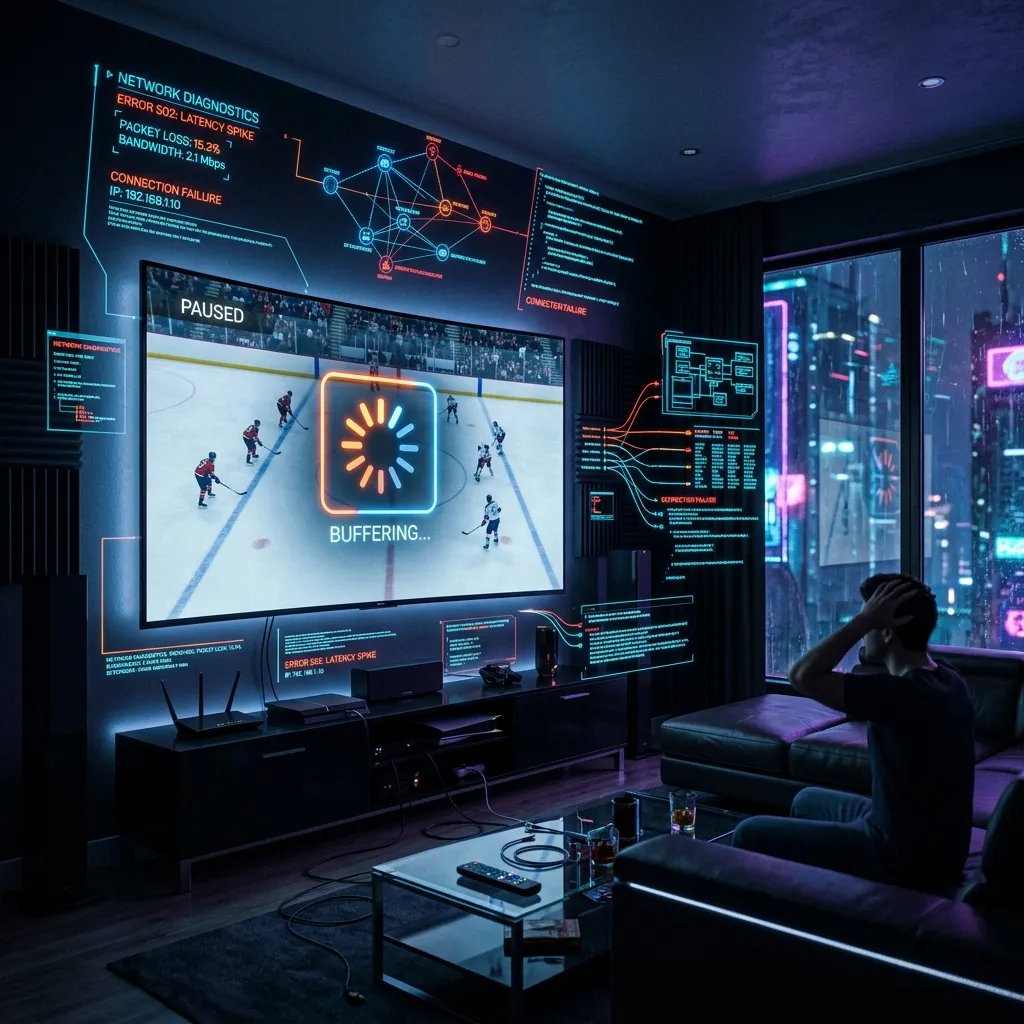
Imagine this scenario: You have waited all week for the biggest football match of the season or the headliner UFC Pay-Per-View event. You have your snacks ready, your friends are gathered around the screen, and the match is at its absolute climax. A player takes a shot, or a fighter throws a decisive punch—and suddenly, the screen freezes. The dreaded circular loading icon begins to spin. By the time your stream catches up, you hear your neighbors cheering or you check your phone only to realize you missed the moment.
If this sounds familiar, you are not alone. In 2026, streaming glitches remain a universal frustration for cord-cutters. If you are looking for a permanent IPTV buffering fix to stop IPTV freeze cycles and eliminate Firestick streaming lag, you have come to the right place. In this guide, we'll teach you how to configure a zero-buffer stream on your Amazon Firestick, Android box, or Smart TV.
Why Does Your IPTV Stream Lag and Freeze?
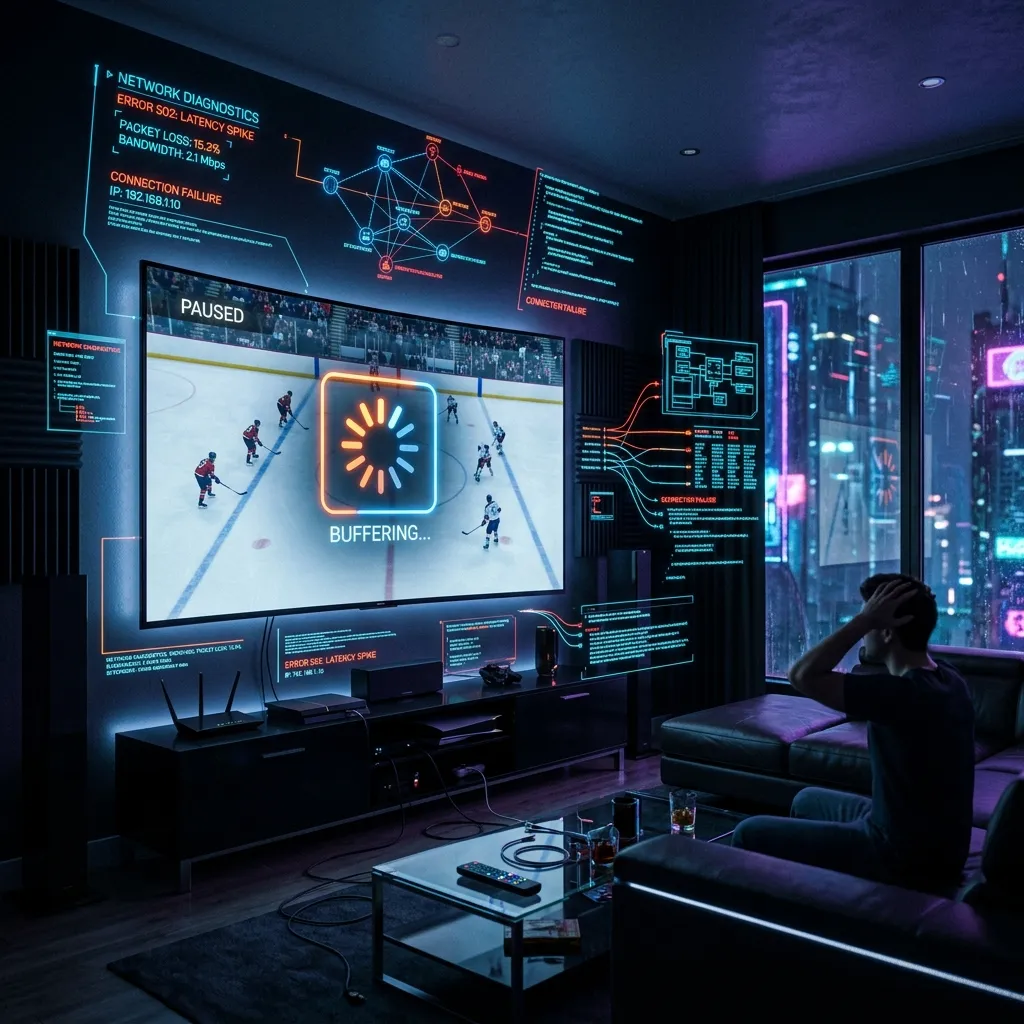
Before diving into the fixes, it helps to understand why your stream is struggling. Streaming live TV is fundamentally different from watching pre-recorded content on platforms like Netflix or YouTube. Netflix can pre-load minutes of video ahead of your playback, whereas a live broadcast must be delivered to your screen in real time.
Any minor disruption along the delivery chain will cause an immediate freeze. The most common technical culprits behind Firestick streaming lag and Smart TV freezes include:
* Low RAM and Bloated Storage: Budget devices like the Firestick have limited memory. Over time, cached files and background processes choke the operating system.
* ISP Throttling: Many internet service providers (ISPs) actively detect and artificially limit high-bandwidth streams during peak hours or live sporting events.
* Overcrowded Provider Servers: Low-cost IPTV providers often overload their servers, packing thousands of subscribers onto a single server that cannot handle the peak traffic.
* Wi-Fi Interference and Packet Loss: Cordless phones, microwaves, and distance from your router cause invisible dropouts that disrupt live streams.
5 Actionable Steps to Stop IPTV Freezing
Below are the five most effective technical troubleshooting methods you can perform right now to optimize your setup and achieve a zero-buffer experience.
1. Clear Cache on Your Firestick & Smart TV
Every time you stream, your device saves temporary files to speed up loading. However, when your storage space is nearly full, the system struggles to read and write data in real time, causing streams to stutter. Regularly performing a clear cache Smart TV or Firestick sweep frees up critical system memory.
How to Clear Cache on Amazon Firestick:
How to Clear Cache on Smart TVs (Samsung, LG, Sony):
2. Bypass ISP Throttling with a High-Speed VPN
If your buffering issues occur primarily during live sports broadcasts or in the evenings, your ISP is likely throttling your connection. ISPs use Deep Packet Inspection (DPI) to monitor your web traffic. When they detect a massive stream coming from an unrecognized server, they throttle the bandwidth.
To bypass this restriction, install a premium VPN on your streaming device. A VPN encrypts all incoming and outgoing data, transforming it into unreadable code. Since your ISP cannot see what you are streaming, they cannot trigger the throttle, helping to stop IPTV freeze cycles instantly.
> [!TIP]
> Avoid free VPNs. Free VPN services often throttle your speed themselves, sell your data, or get blocked by premium streaming platforms. Opt for a high-speed provider with WireGuard protocol support to ensure maximum throughput.
3. Adjust Media Player Buffer Settings
Most modern IPTV media players allow you to adjust the buffer size. By default, players like TiviMate or IPTV Smarters are configured with a very low buffer to make channel switching instantaneous. Increasing this window gives your device a cushion against minor internet latency spikes.
How to Configure Buffer Size in Common Players:
TiviMate: Go to Settings > Playback > Buffer Size. Change the setting from None or Normal* to Large or Very Large.
* IPTV Smarters Pro: Go to Settings > Stream Format > Buffer Size. Set it to 5 seconds or 10 seconds depending on your network quality.
* XCIPTV: Open Settings > Player > Buffer Time. Increase the value to allow a few seconds of pre-loading.

> [!NOTE]
> While a larger buffer size will stop minor freezes, it will add a few seconds of delay to the live broadcast. If you are watching live sports and want to avoid spoilers, a 5-second buffer is usually the sweet spot.
Additionally, we recommend disabling "Update EPG on app startup." Large Electronic Program Guides (EPG) load millions of lines of data, which can crash low-powered devices. Instead, configure your app to update the TV guide progressively or once every 24 hours.
4. Switch from Wi-Fi to a Wired Ethernet Connection
Even if you have gigabit fiber-optic internet, Wi-Fi is prone to packet loss, latency spikes, and signal degradation. A wired connection provides constant, uninterrupted data flow.
If your router is too far from your television, consider these alternatives:
* Ethernet Adapter for Firestick: Amazon sells an official Ethernet Adapter that plugs directly into the micro-USB power port of your Firestick. For detailed specifications and hardware setup, you can consult Amazon's official support page.
* Powerline Adapters: These devices send internet data through your home's existing electrical wiring, allowing you to connect an Ethernet cable from any wall outlet.
* 5GHz Wi-Fi Band: If you must use Wi-Fi, ensure your streaming device is connected to the 5GHz frequency band rather than the crowded 2.4GHz band.
5. Switch to a Premium DNS Provider
Your ISP's default Domain Name System (DNS) servers are often slow, congested, and sometimes programmed to block or redirect streaming server addresses. Switching your DNS to Cloudflare or Google can speed up connection times and resolve buffering issues caused by lookup latency.
Recommended Free Public DNS Servers:
* Cloudflare DNS: Primary `1.1.1.1` | Secondary `1.0.0.1`
* Google DNS: Primary `8.8.8.8` | Secondary `8.8.4.4`
To change DNS on a Firestick or Smart TV, go to your network settings, switch the IP configuration from DHCP to Static, and manually enter the DNS IP addresses listed above. To verify that your new configuration improves raw speed, test your throughput via Fast.com (powered by Netflix). For step-by-step instructions across various devices, you can follow our setup guides to configure your network parameters correctly.

The Hard Truth: Is Your IPTV Provider the Real Problem?
If you have cleared your cache, bypassed ISP throttling with a VPN, switched to a wired connection, and optimized your player settings, yet your stream still freezes during major matches, the problem is not on your end. The bottleneck is your IPTV provider.
Many cheap, budget providers host their streams on low-cost servers. To maximize profits, they oversell their capacity, squeezing thousands of users onto hardware that collapses under peak load. No amount of local troubleshooting can fix an overloaded server.
If you are ready to stop troubleshooting and start enjoying television as it was meant to be, it is time to upgrade to a premium service. At ZeroBuffering, we engineered a streaming service designed specifically to eliminate lag:
* Load-Balanced Architecture: We do not host our users on a single server. Our network automatically routes your connection to the nearest, least congested node in real time.
* High-Bandwidth 10Gbps Links: Our enterprise servers utilize high-speed uplink connections to guarantee smooth 4K and 60FPS playback even during major global events.
* Lightweight, Progressive EPG: Our programming guides are designed to load progressively, meaning they will not crash or slow down low-RAM devices like Firesticks.
Ready to see the difference for yourself? You can review our setups page for quick installation instructions, and check our premium packages and pricing to start streaming with our 7-day money-back guarantee. Zero buffering. Zero headaches. Just pure entertainment.
Stop Buffering Forever
Enter your email to receive our Anti-Throttle Ultimate Checklist and a secret discount code for ZeroBuffering.