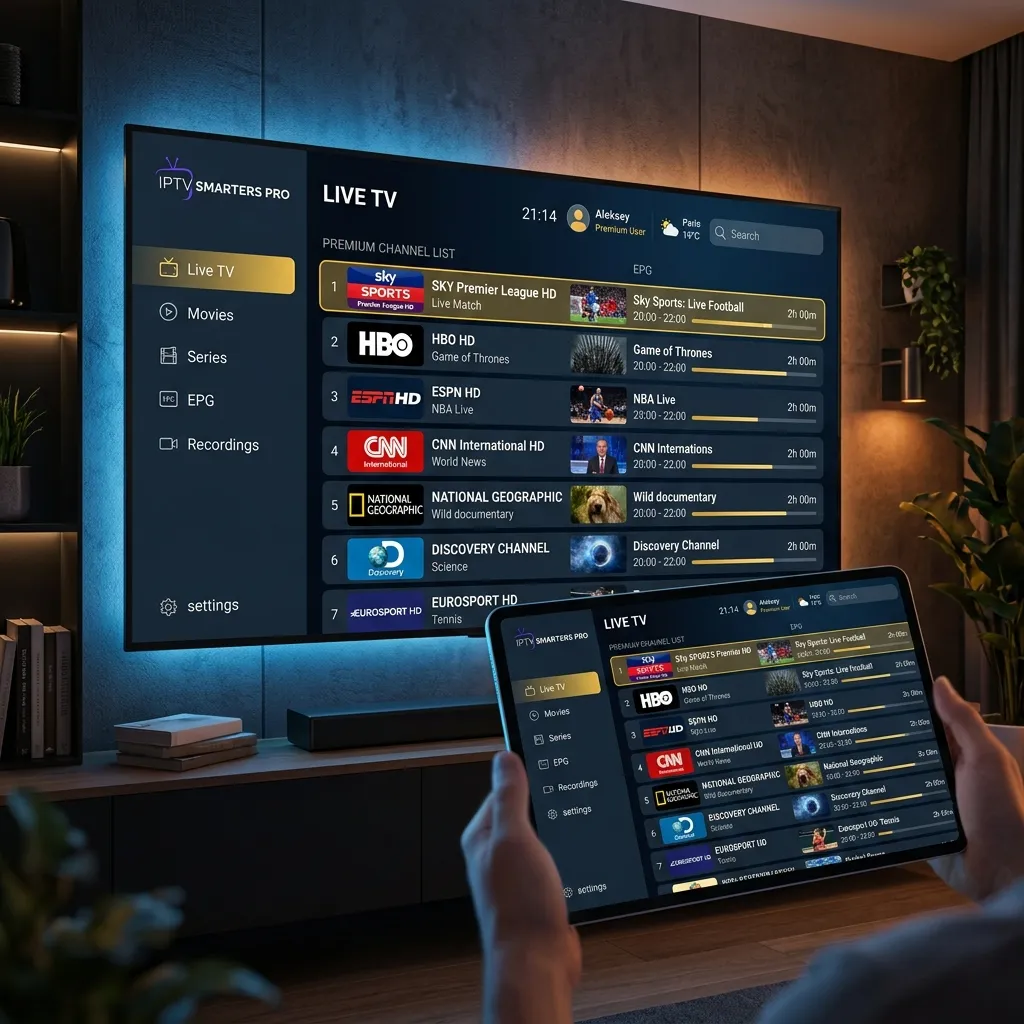
How to Set Up IBO Player Pro in 3 Easy Steps (2026)
Learn how to quickly set up IBO Player on your Smart TV, Android, or Firestick. Our simple 3-step tutorial gets you streaming in under 5 minutes.
Why Choose IBO Player Pro?
If you are looking for a reliable, fast, and user-friendly IPTV application, IBO Player Pro is currently one of the best choices in 2026. Unlike older applications, it offers an incredibly smooth interface, excellent EPG (Electronic Program Guide) support, and almost zero lag—especially when paired with a high-quality premium streaming provider like ZeroBuffering.
Whether you're using a Samsung Smart TV, an LG TV, or an Android box, setting up IBO Player is surprisingly simple. Let's look at the only 3 steps you need.
Step 1: Download and Install the App
The first step is getting the app onto your device. IBO Player Pro is available on most major app stores.
For Samsung & LG Smart TVs:
For Android TV & Firestick:
(If you need to use the Downloader app on Firestick, simply enter the official IBO Player APK link).
Step 2: Write Down Your Device MAC Address and Key
Once installed, open the IBO Player Pro app on your TV.
On the very first screen, you will be greeted with two very important pieces of information that identify your TV:
> Important: Take a picture with your phone or write these down! You will need them to link your IPTV subscription to your device.
Step 3: Activate and Link Your Playlist
Now that you have your MAC Address and Device Key, it's time to add your ZeroBuffering playlist to the player.
You're Done! Reboot and Enjoy
Congratulations! The setup is entirely complete.
Return to your TV, restart the IBO Player app (or click the "Reload" button on screen), and all your channels, movies, and series will immediately load with covers and EPG data.
Why Do Streams Still Buffer Sometimes?
If you've successfully set up IBO Player but still experience freezing or buffering, the app is rarely the problem. Your provider's server capacity is.
ZeroBuffering uses specialized, high-tier edge servers with anti-buffering technology built-in, guaranteeing that your live sports and 4K movies run flawlessly on IBO Player Pro.
Try ZeroBuffering with IBO Player today!
Stop Buffering Forever
Enter your email to receive our Anti-Throttle Ultimate Checklist and a secret discount code for ZeroBuffering.